Lucid Toolbar Configuration
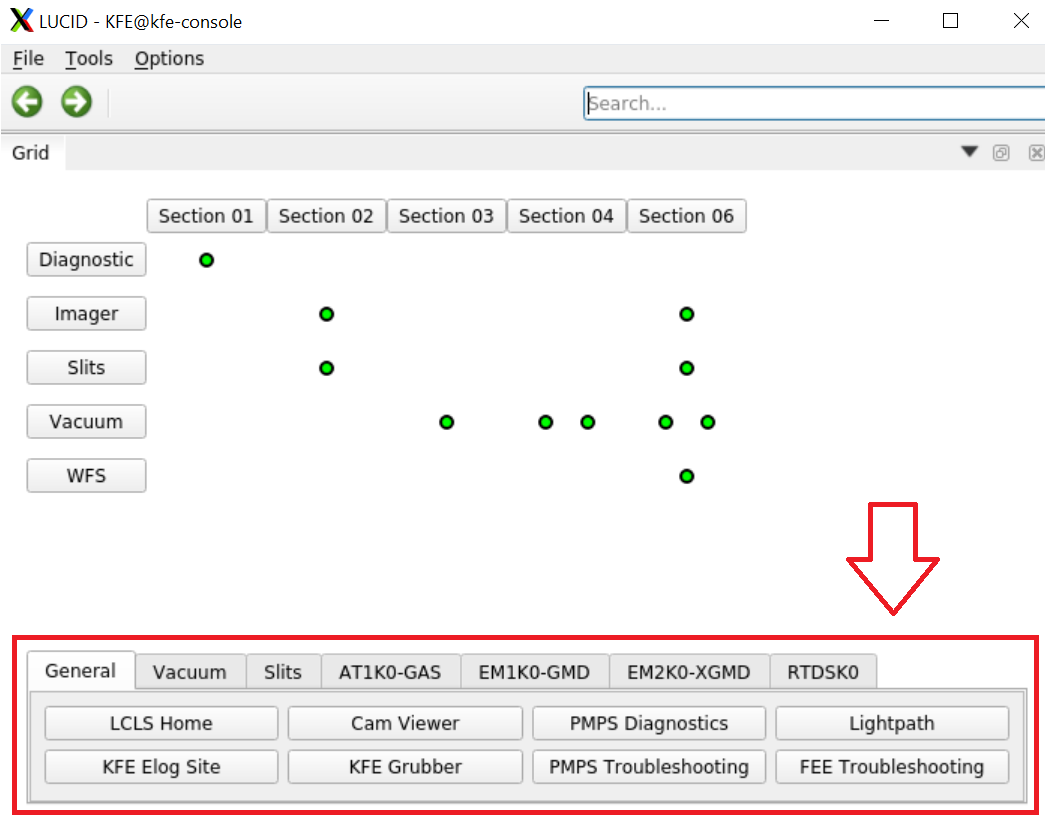
lucid can be launched with a toolbar file that specifies
the tabs that are displayed below the device grid.
These tabs can be configured to hold buttons
that open other screens.
Invocation
The invocation to include this toolbar file is:
lucid --toolbar /path/to/toolbar/file.yaml HUTCHNAME
Options and Limitations
The user can specify an arbitrary number of tabs.
Each tab can have an arbitrary number of columns.
The columns are filled from left to right, then from top to bottom.
Only
LucidDockButton,PyDMShellCommandandPyDMRelatedDisplayButtonwidgets are supported.Any available pyqt property or general python attribute can be specified on any of these button types.
Guidelines
The dock (
dock) and related display (display) options open windows more quickly than the shell commend (shell) option and should be used whenever possible. A pydm screen in a shell script would need to initialize an entire new python shell with new imports, and may even have other setup steps, leading to large delays.The dock option (
dock) should be used for any screen that fits nicely in the dock- that is, any screen that isn’t wide. This gives the user maximum flexibility for how to use the screen.The related display option (
display) should be used for larger screens that don’t fit into the dock.The shell command (
shell) option should be reserved for cases where it is strictly required, such as for running non-PyDM applications.
File Format
The toolbar configuration is stored in a yaml file that encodes a dictionary. Each key in this top-level dictionary is the name of a tab to include. These tabs will be arranged in file order from left to right.
Each of these tab names should contain another dictionary with the following top-level keys:
config(optional)buttons
The only config option right now is cols, which defaults to 4.
Here’s an example config file structure, omitting only the buttons sections:
tab1_name_with_3_cols:
  config:
    cols: 3
  buttons: see below
tab2_name_with_2_cols:
  config:
    cols: 2
  buttons: see below
tab3_name_with_4_cols:
  buttons: see below
The buttons key should itself point to a dictionary that maps each
button text to a button config dictionary, in order.
LUCID will iterate through these dictionaries and create buttons,
arranging them from left to right across each column before moving to the next row.
The button config dictionary has one special key: type.
The type key can be one of dock to create a LucidDockButton,
shell to create a PyDMShellCommand button,
or display to create a PyDMRelatedDisplayButton.
If type is omitted, or is not one of these options,
an inactive QPushButton will be created.
For the dock widget, there is an additional optional default key that can be
used to pick which widget should be opened automatically in the dock when lucid is started.
This would look something like:
Default In Dock:
  type: dock
  filename: /path/to/my/docked/file.ui
  default: true
If no dock button has the default key set to True, we’ll pick the first dock button in the config file. If multiple dock buttons have the default key set to True, we’ll pick the first of these.
All other keys in the config dictionary should be mappings from qt property names to each property’s desired value. This is forward-compatible with any new properties that may be implemented in the future for these button types.
Here’s an example buttons config snippit that shows the structure and some of the useful properties. This will create two buttons, one with button text “Cool PyDM Display” and another with button text “Run Neat Script.”
buttons:
  Docked PyDM Display:
    type: dock
    filename: /path/to/my/ui/file.ui
    macro: "{'PREFIX': 'DOCKED'}"
  Cool PyDM Display:
    type: display
    filenames:
      - /path/to/some/ui/file.ui
    macros:
      - "{'PREFIX': 'COOL'}"
  Run Neat Script:
    type: shell
    commands:
      - "echo 'neat'"
      - /path/to/some/neat/shell/script.sh
    redirectCommandOutput: true
Examples
The LCLS lucid toolbar configurations are backed up in this github repo. These are all good examples for how to set these files up.